University life and proper sleep rarely go together. Between late-night assignments, early lectures, group projects, side hustles, and endless scrolling on your phone, sleep often becomes the first sacrifice. Many students assume they’re getting “enough” rest simply because they spend several hours in bed, but the reality can be very different.
That’s where the Apple Watch quietly becomes one of the most useful tools you can own as a student.
Beyond tracking workouts or acting like a tiny walkie-talkie on your wrist, the Apple Watch is also one of the most capable sleep trackers available today. If you’re trying to understand your sleep habits, improve recovery after workouts, or simply stop waking up exhausted before morning lectures, it can provide valuable insights.
But here’s the thing most people miss: the watch only works well if the right settings are enabled.
Whether you just bought a new watch or you’ve had one for years, these six settings can dramatically improve the accuracy of your sleep data.
Have you read?: Apple Just Made Switching to Android Easier With iOS 26.3
1. Turn On Sleep Tracking
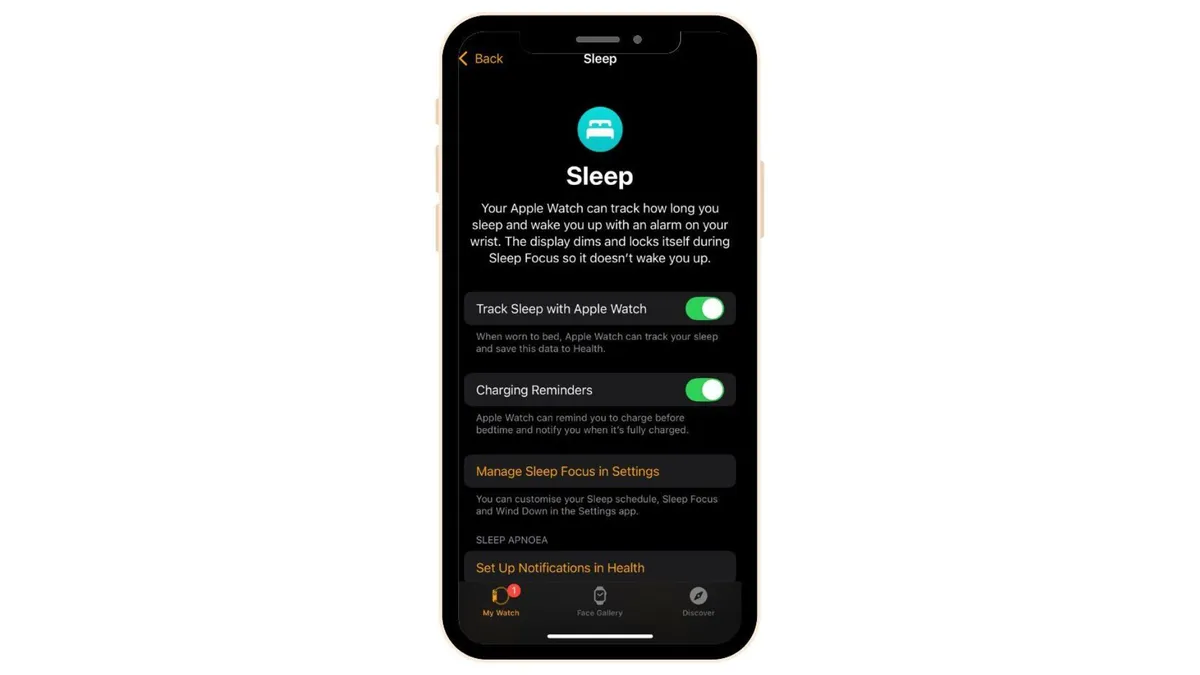
This sounds obvious, but many Apple Watch users never actually activate sleep tracking properly.
If sleep tracking isn’t enabled, the Apple Health app simply guesses your sleep time based on when your phone stops being used. That estimate is nowhere near as accurate as the real data collected directly from your watch.
When sleep tracking is turned on, your watch monitors:
- Sleep stages
- Movement
- Heart rate
- Total sleep duration
How to enable it
- Open the Watch app on your iPhone
- Tap My Watch
- Go to Sleep
- Toggle on Track Sleep with Apple Watch
Once this is activated, your watch automatically saves detailed sleep data into the Apple Health app every night.
For students trying to balance academics, social life, and health, this information can reveal patterns you probably never noticed.
2. Make Sure the Watch Fits Properly
Sleep tracking accuracy depends heavily on sensor contact with your skin.
If your watch is too loose, the sensors may lose contact during the night. If it’s too tight, it may become uncomfortable and disrupt your sleep.
A simple guideline many sleep researchers suggest is the “two-finger rule.”
Your watch should be snug enough to stay in place but loose enough that you can comfortably slide two fingers under the band.
Students who find it uncomfortable to sleep with a watch can try:
- A softer sport band
- A breathable fabric band
- Slightly loosening the strap before bed
Comfort matters. If the watch irritates your wrist, chances are you’ll stop wearing it overnight.
3. Turn On Wrist Detection
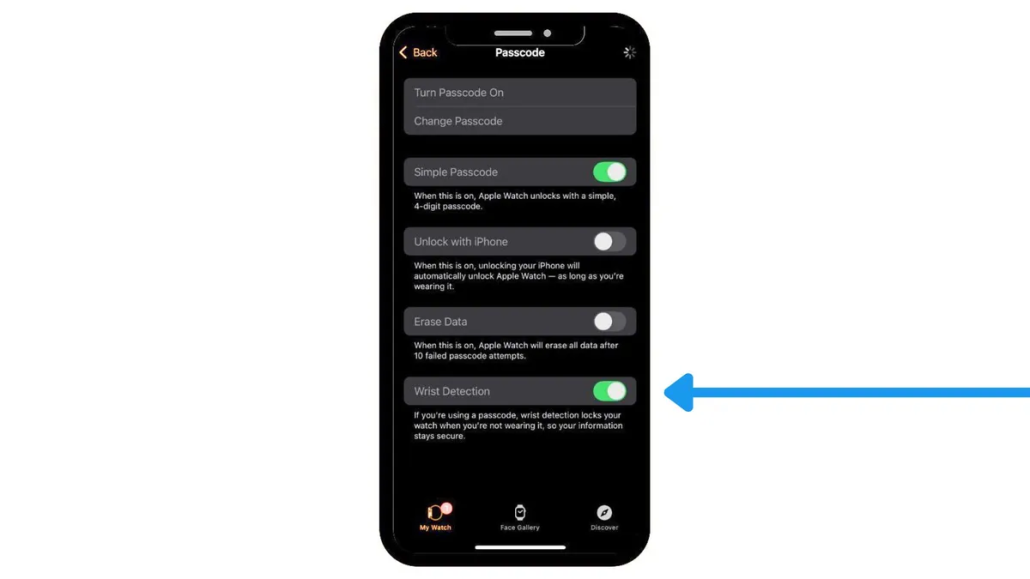
One of the most important features for sleep tracking is Wrist Detection.
This feature tells the watch whether it’s actually being worn. Without it, the watch stops recording certain background health data, including heart rate readings during sleep.
Heart rate patterns play a major role in identifying sleep stages.
During deep sleep, your heart rate typically drops about 20–30% below your normal resting rate. Sleep trackers rely on this data to distinguish between light sleep, deep sleep, and REM sleep.
How to enable Wrist Detection
- Open the Watch app on your iPhone
- Go to Passcode
- Turn on Wrist Detection
Without this setting, your watch may miss critical overnight data.
4. Enable Blood Oxygen and Sleep Apnea Monitoring
Many students joke about their roommates’ snoring, but persistent snoring can sometimes point to deeper sleep problems.
The Apple Watch includes tools designed to detect possible breathing disturbances during sleep.
The watch measures blood oxygen levels, which can fluctuate slightly during sleep. However, major drops may suggest breathing interruptions such as Sleep Apnea.
On newer watches, Apple also introduced an algorithm that can flag patterns consistent with sleep apnea.
To enable blood oxygen monitoring
- Open the Watch app
- Tap Blood Oxygen
- Turn on Blood Oxygen Measurements
If you own newer models like the Apple Watch Series 9 or later, sleep apnea monitoring may activate automatically.
After roughly 10 nights of wear within a 30-day period, the watch analyzes your sleep data. If it detects patterns linked to sleep apnea, it sends a notification to the Health app.
This isn’t a medical diagnosis, but it can help identify potential issues worth discussing with a doctor.
5. Turn On Charging Reminders
Battery life is one of the few weaknesses of the Apple Watch.
Unlike devices from companies like Garmin or Oura that can last several days on a single charge, most Apple Watches need charging every 24 hours.
If your battery drops too low overnight, the watch may stop tracking sleep halfway through the night.
Apple recommends having at least 30% battery before going to bed.
A simple student routine
Many users charge their watch:
- While showering
- During evening study time
- While reading before bed
To avoid forgetting, turn on Charging Reminders in the Sleep section of the Watch app. Your watch will send a notification reminding you to charge before bedtime.
6. Pay Attention to Wrist Temperature Tracking
Newer Apple Watches — starting from the Apple Watch Series 8 — include wrist temperature sensors.
This feature tracks subtle overnight temperature changes in your body.
Body temperature plays a major role in sleep cycles. As bedtime approaches, your core temperature naturally drops. This change helps trigger the release of melatonin, the hormone responsible for making you feel sleepy.
Later in the night, your body temperature rises slightly again.
This is one reason many people suddenly wake up around 3 a.m.
The Apple Watch automatically records wrist temperature while Sleep Focus is active.
To view your temperature data
Open:
Health app → Body Measurements → Wrist Temperature
Over time, these trends can reveal valuable information about your sleep habits and overall health.
Don’t Forget Sleep Focus Mode
The final tip isn’t about tracking accuracy — it’s about actually sleeping better.
Apple’s Sleep Focus mode blocks notifications and distractions across your devices at your chosen bedtime.
For students, this feature can be surprisingly powerful.
Late-night scrolling is one of the biggest enemies of good sleep. A phone notification at midnight can easily turn into an hour of mindless scrolling.
When Sleep Focus activates, your devices automatically enter Do Not Disturb mode.
No notifications.
No distractions.
Just sleep.
For many people, this one setting alone is enough to fix inconsistent sleep routines.
In case you missed this: 10 Practical Ways Nigerian University Students Can Use Google Gemini to Study Smarter
Why Sleep Tracking Matters for Students
Sleep isn’t just about feeling rested.
It directly affects:
- Memory and learning
- Focus during lectures
- Mental health
- Athletic recovery
- Immune system strength
Many students blame fatigue on academic pressure when the real issue is poor sleep quality.
Your Apple Watch can’t solve every sleep problem — but with the right settings enabled, it can show you patterns that help you make better choices.
And sometimes that small awareness is the difference between dragging yourself through class… and actually performing at your best.